§ Features
From script to every screen
For creators, presenters, live events and studios. Start with a script and a second screen, then add network and SDI outputs as the production grows.
01 · Prompting
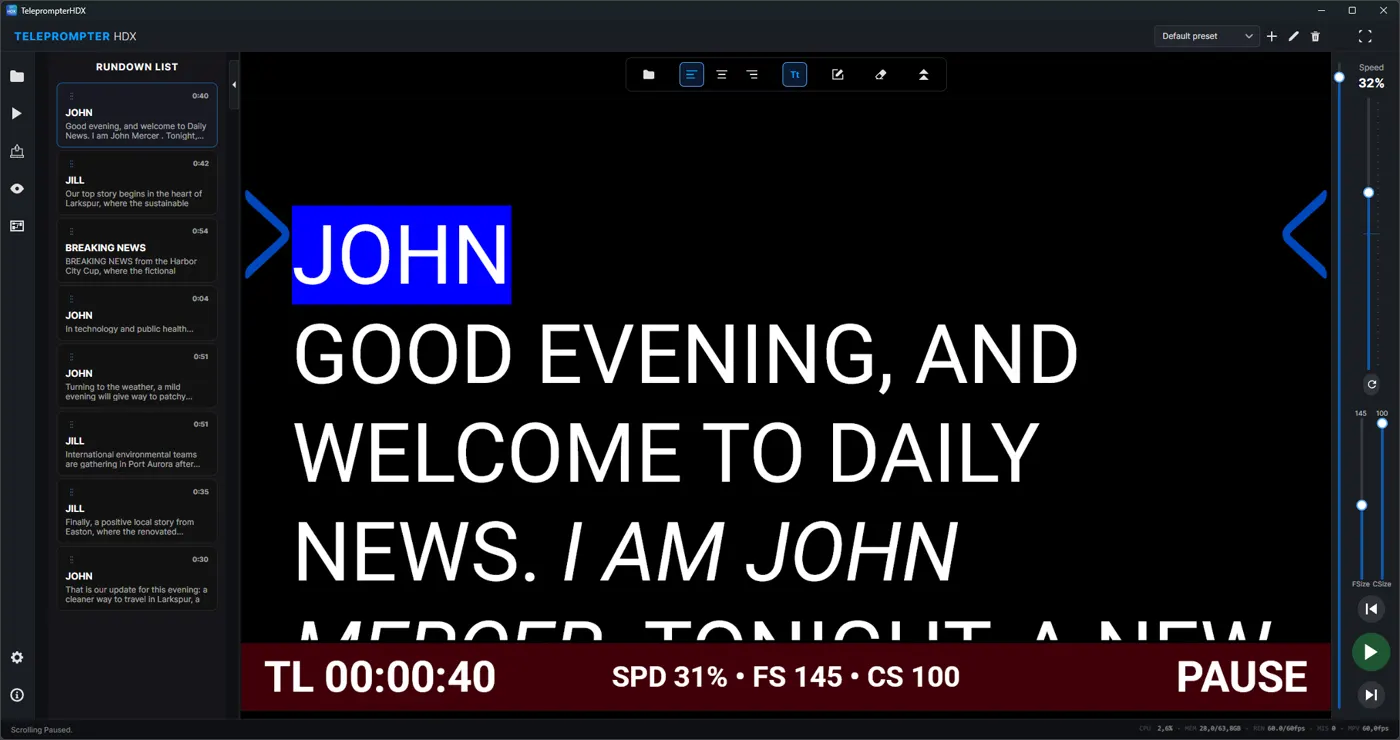
Core prompting controls stay on the main screen
The operator does not leave the prompter to make a change. Speed, type size, canvas width and text position are all within reach while the presenter is reading, and the script can be moved by slider, mouse wheel, keyboard, phone or jog dial.
- Adjust scrolling speed while the presenter is reading
- Set the canvas width and align text left, centre or right from the toolbar
- Mirror and flip for hooded prompters and glass rigs
02 · Automation
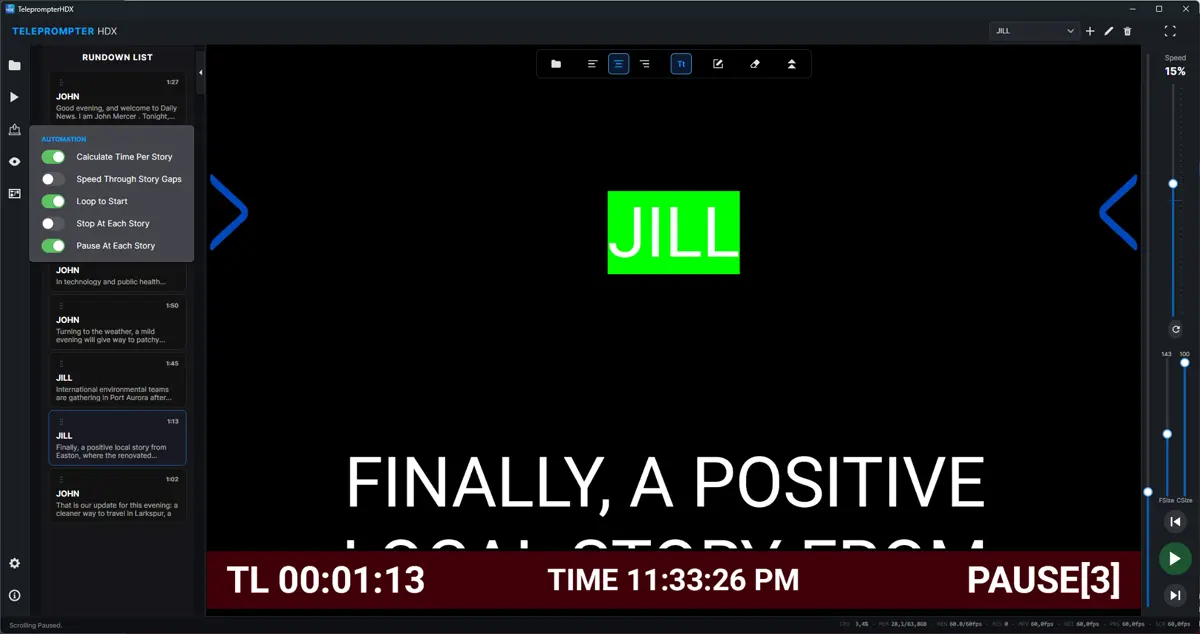
Let the script pause where it should
A running order has natural breaks, and an operator should not have to tap pause at every one. TeleprompterHDX can act on story boundaries on its own, and can loop back to the first story at the end of a rundown. Every behaviour leaves a manual override.
- Stop at each story and align it with the reading pointer
- Pause for a set number of seconds, with a countdown on screen
- Move quickly through the gap between stories, then return to reading speed
03 · Status bar
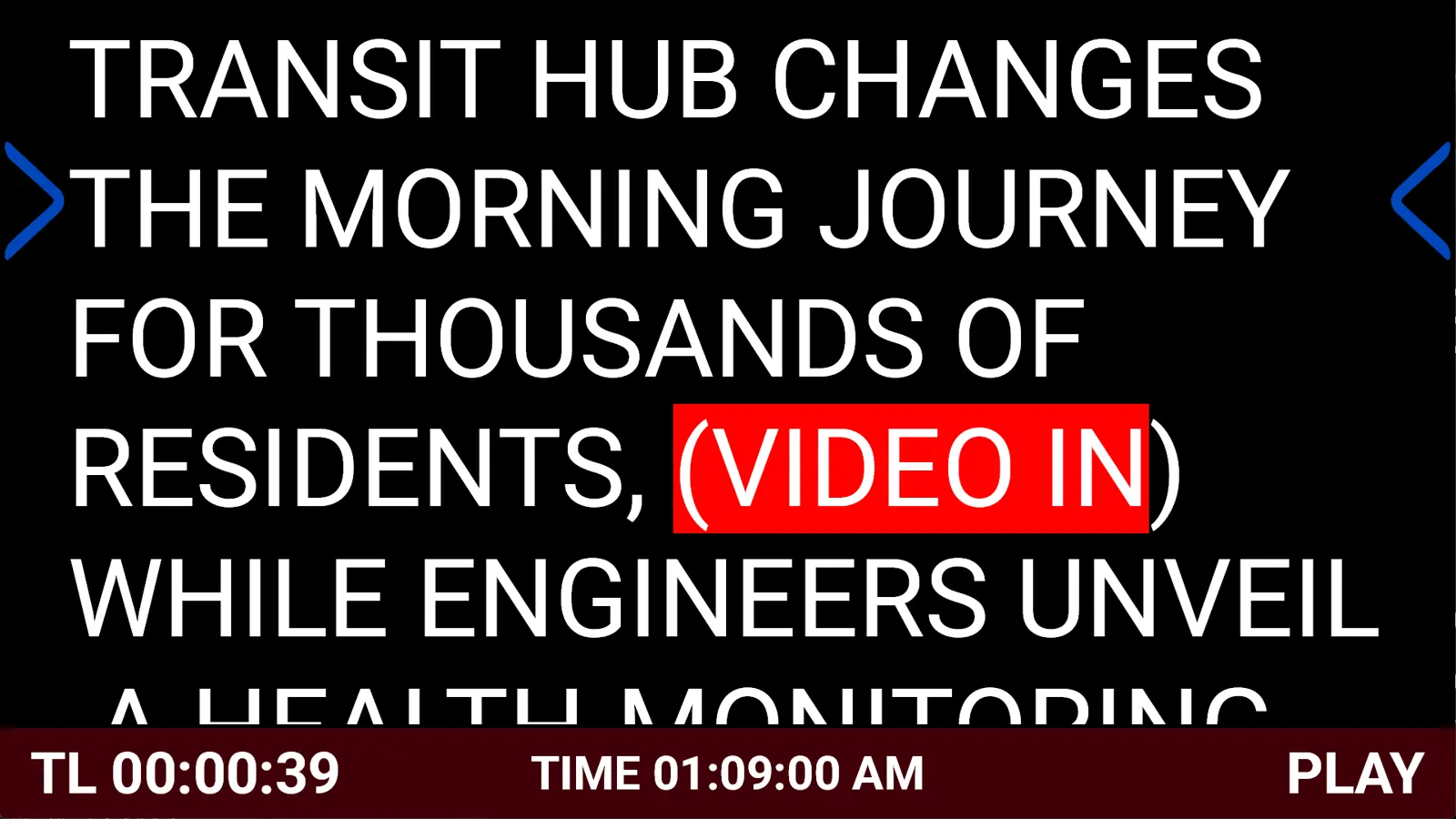
Put production information on the prompt
The prompter screen can carry more than the words. A timing reminder, a technical cue or a message from the gallery sits where the presenter and the crew already look, in a bar sized for the room.
- Scrolling state, time remaining and the countdown during a timed pause
- Current speed, text size and canvas size
- A 12-hour or 24-hour clock, plus a message for the current segment
04 · Script
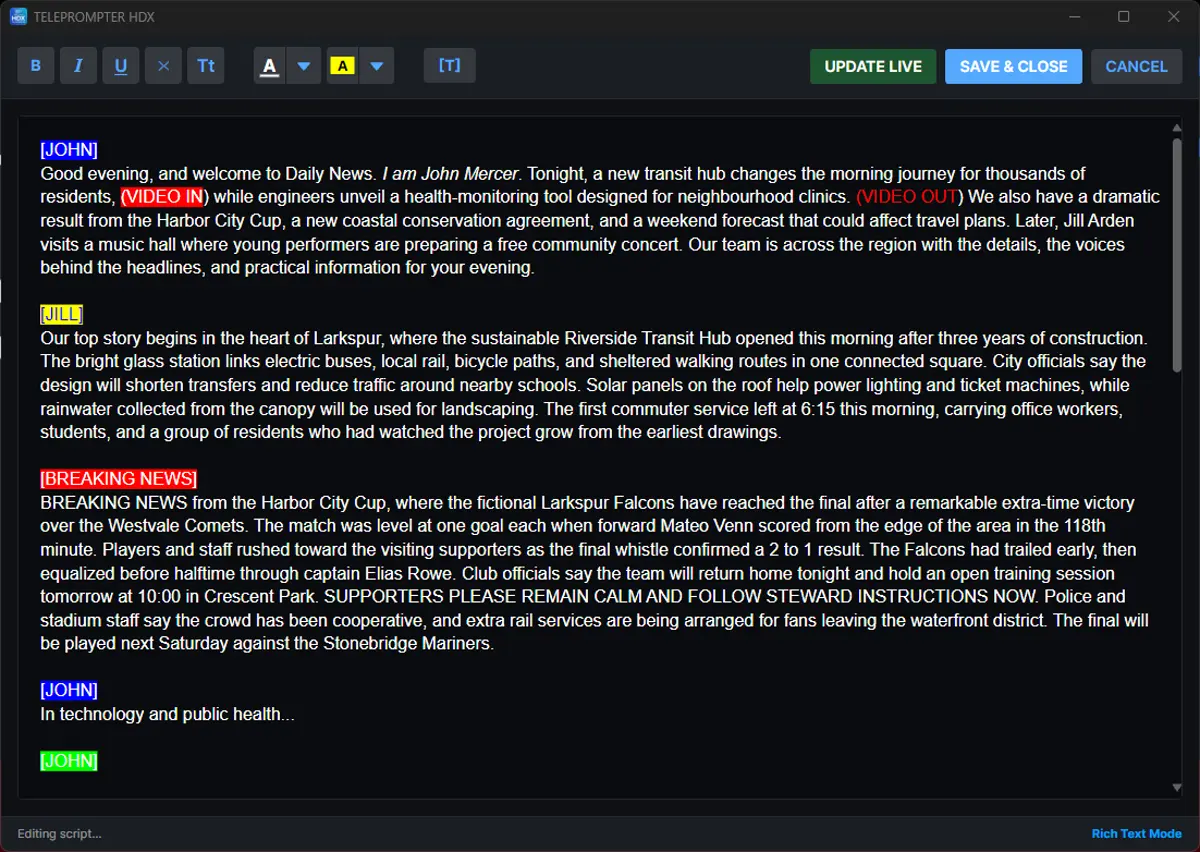
Bring your script and keep editing it
Open a script written in Word, OpenDocument, RTF or plain text. Supported styles such as bold, italic, underline and colour can carry over from rich-text files; plain text has no formatting to import. Corrections that arrive after the script is prepared are made in the same application.
- Import .docx, .odt, .rtf and .txt files, retaining supported styles where available
- Style, colour, uppercase and titles inside the application
- UPDATE LIVE pushes a correction to the running prompter without closing the editor
05 · Rundown
A running order built into the prompter
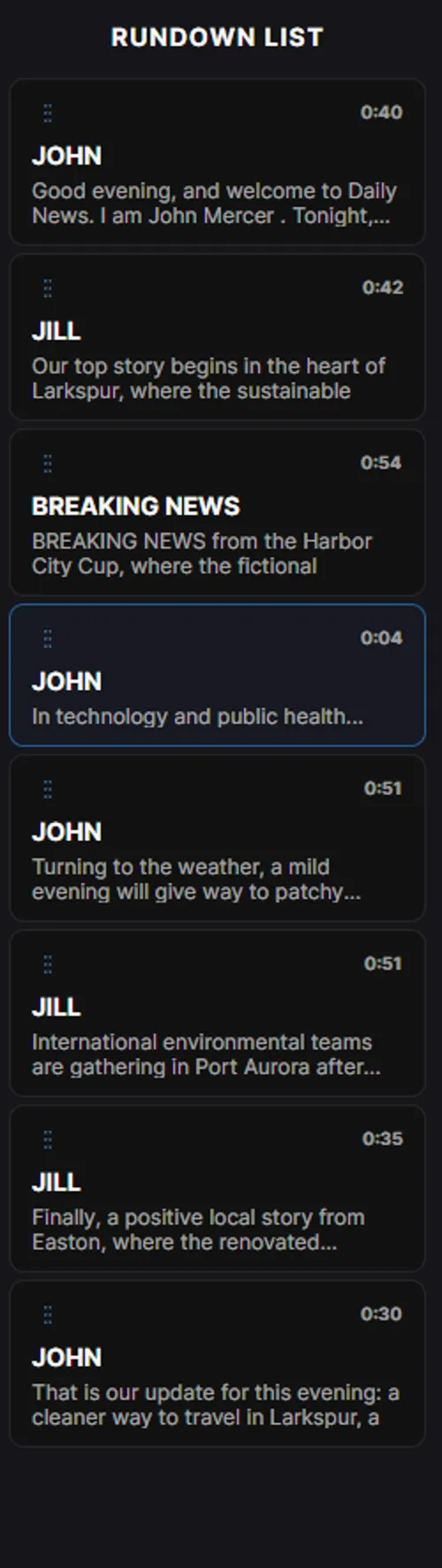
Mark story headings and a long script becomes a navigable running order, with a number, a title, a preview and an estimated duration in seconds for each item. It stays in step with the presenter, so the operator always knows where the show is.
- Click a story to take the prompter straight to it
- The active story and its estimated duration stay visible as the show moves
- Drag to reorder — the formatted text travels with the story
06 · Guides
Shaped around the person reading
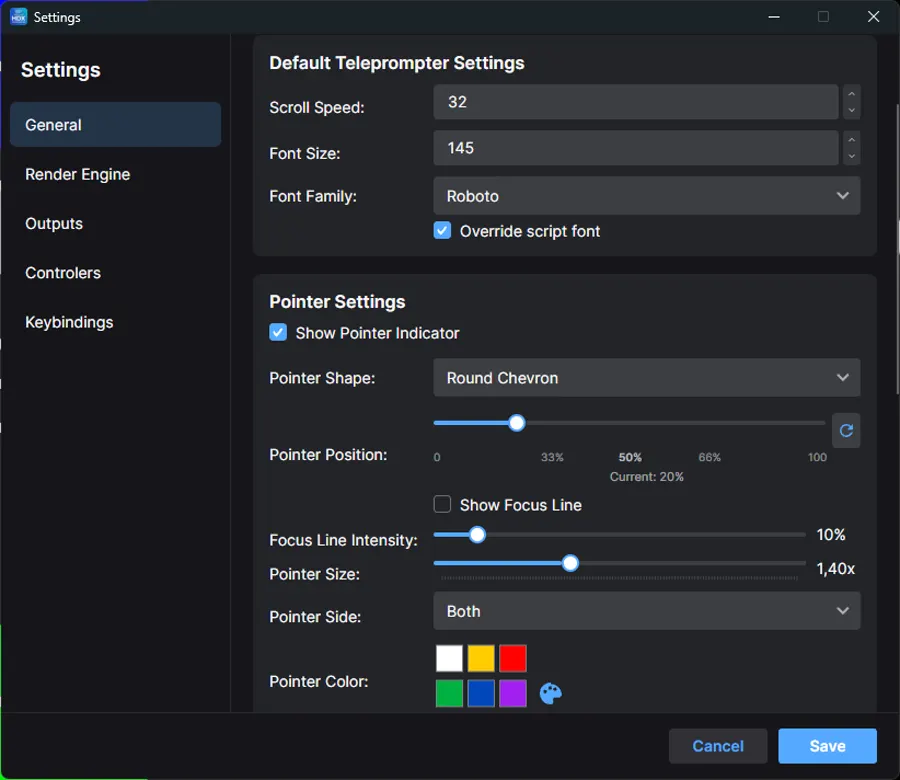
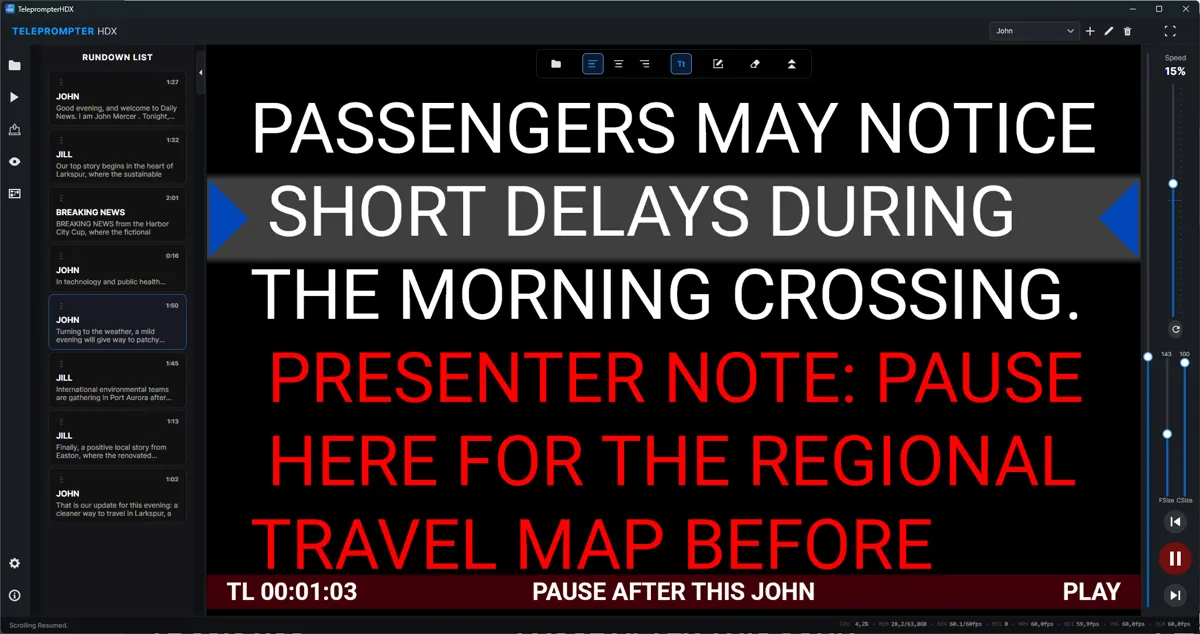
Every presenter reads differently. The pointer marks where their eye should sit, the focus line can make that position more or less obvious, and type and background adapt to the room and the camera. These presentation settings do not rewrite the script.
- Place the reading pointer on the left, right or both sides, at the height that suits the presenter
- Add a focus line across the reading position and set how prominent it is
- Choose from installed fonts, with adjustable size, reading width and background colour
07 · Presets
Save a presenter's setup, recall it in one click
Presenters change, studios change, and nobody wants to rebuild a reading view before every session. A named preset stores the complete presenter setup — speed, type, reading width, pointer, focus line, status bar and background — and brings all of it back at once.
08 · Outputs
One picture, several destinations
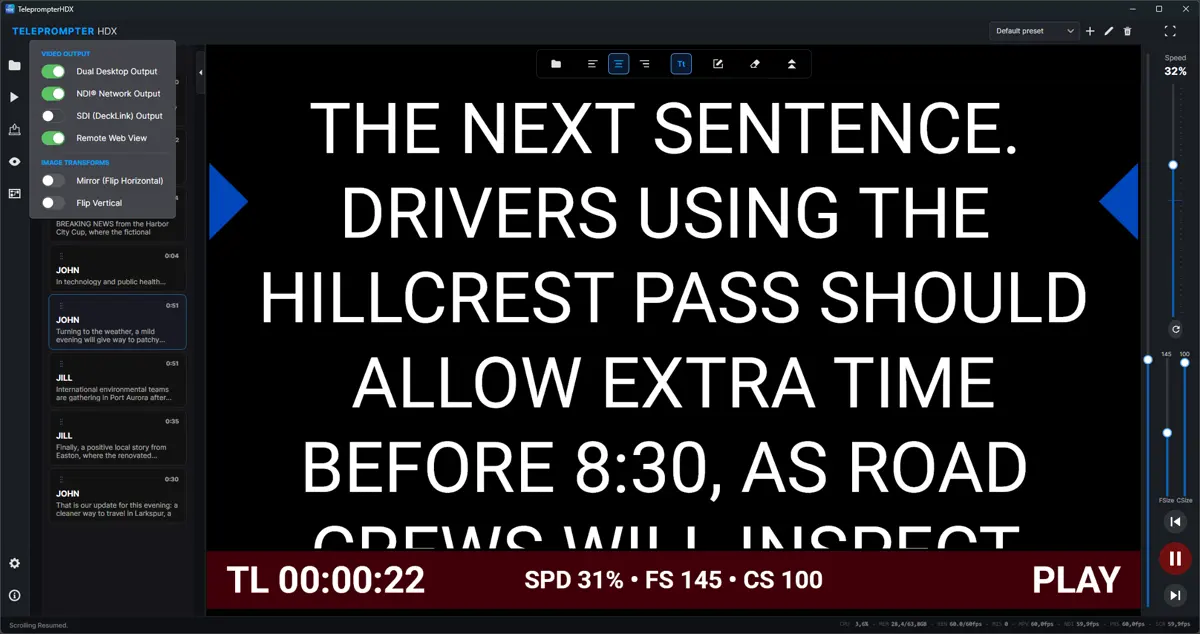
TeleprompterHDX creates the prompter picture independently of the operator interface, allowing the same clean output to feed the main preview, a second screen, NDI and DeckLink / SDI at the same time. Each output is switched on independently, so a production only runs what it actually needs.
Browser displays follow the synchronized prompt on their own path rather than receiving the video picture, so an ordinary laptop or tablet can act as a display without a separate video receiver.
09 · NDI
Send the prompt across your production network
TeleprompterHDX appears as an NDI source on your production network. Give the source a clear name, then select it on a compatible switcher, multiviewer, monitor, recorder or receiving application — wherever you normally pick an NDI input.
The included NDI HDX Receiver
The included NDI HDX Receiver is a separate Windows app for another PC. It receives the NDI stream over your local network, reconnects if the source drops, and displays it fullscreen on that PC's monitor. It is one way to receive the prompt, not a requirement.
10 · SDI
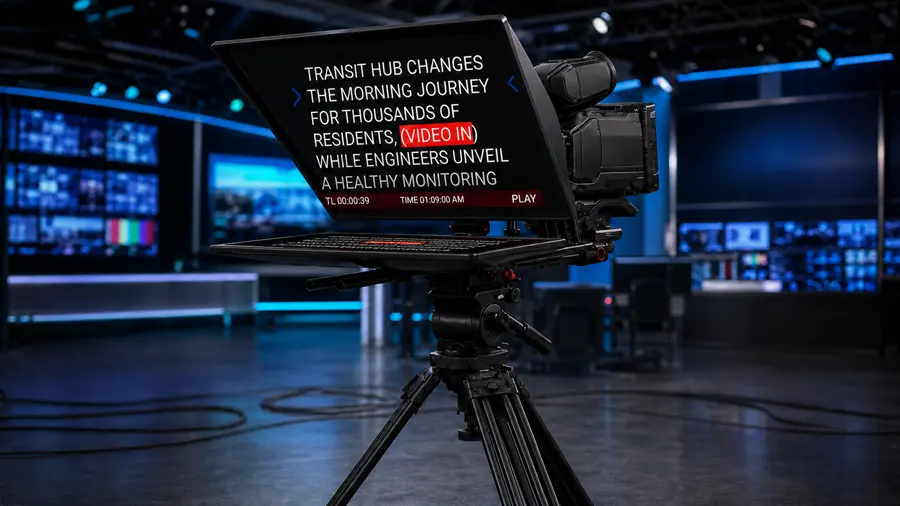
Straight into an SDI workflow
Send the prompter picture directly into an SDI workflow through compatible Blackmagic DeckLink hardware, using the video modes the installed device exposes. Mirror and flip travel with the signal, so the picture matches the physical rig.
Requires compatible Blackmagic DeckLink hardware and its drivers, purchased separately.
11 · Remote View
Turn browsers into prompter displays
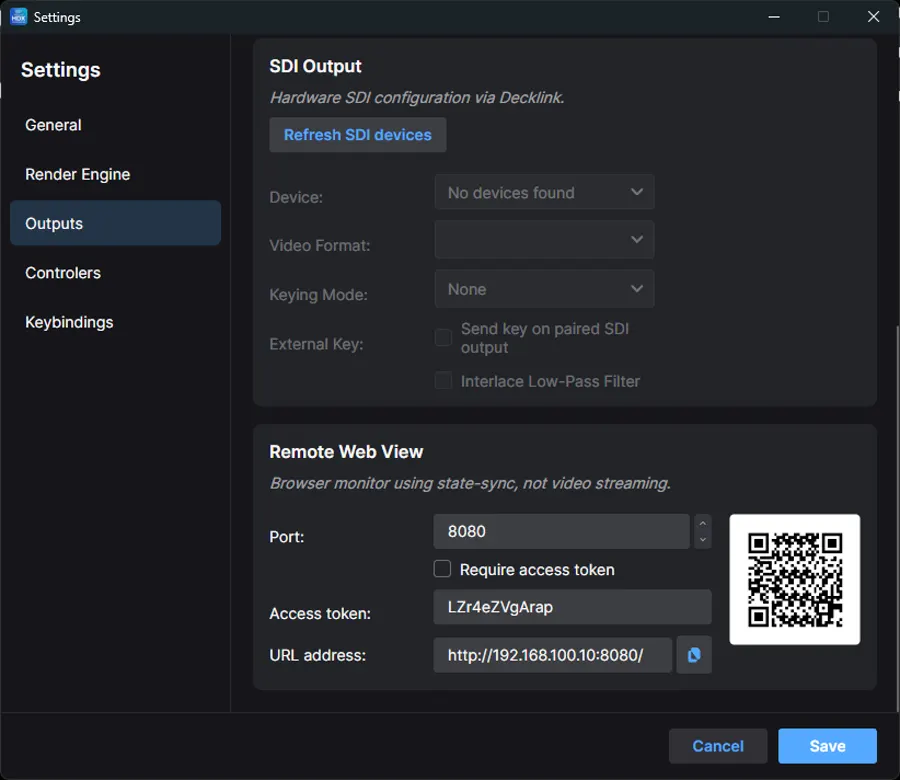
Open synchronized prompter displays in one or more browsers over the same local wired or Wi-Fi network. A producer follows on a laptop, an assistant on a tablet, a confidence screen sits in the next room — all showing the same live prompt without a separate video receiver for each browser display.
- The script, scroll position and play state stay in step with the main application
- Open a display from a link or a QR code on a configurable port
- Restrict the address with an optional access token
12 · WEB Remote
Run the prompt from your phone
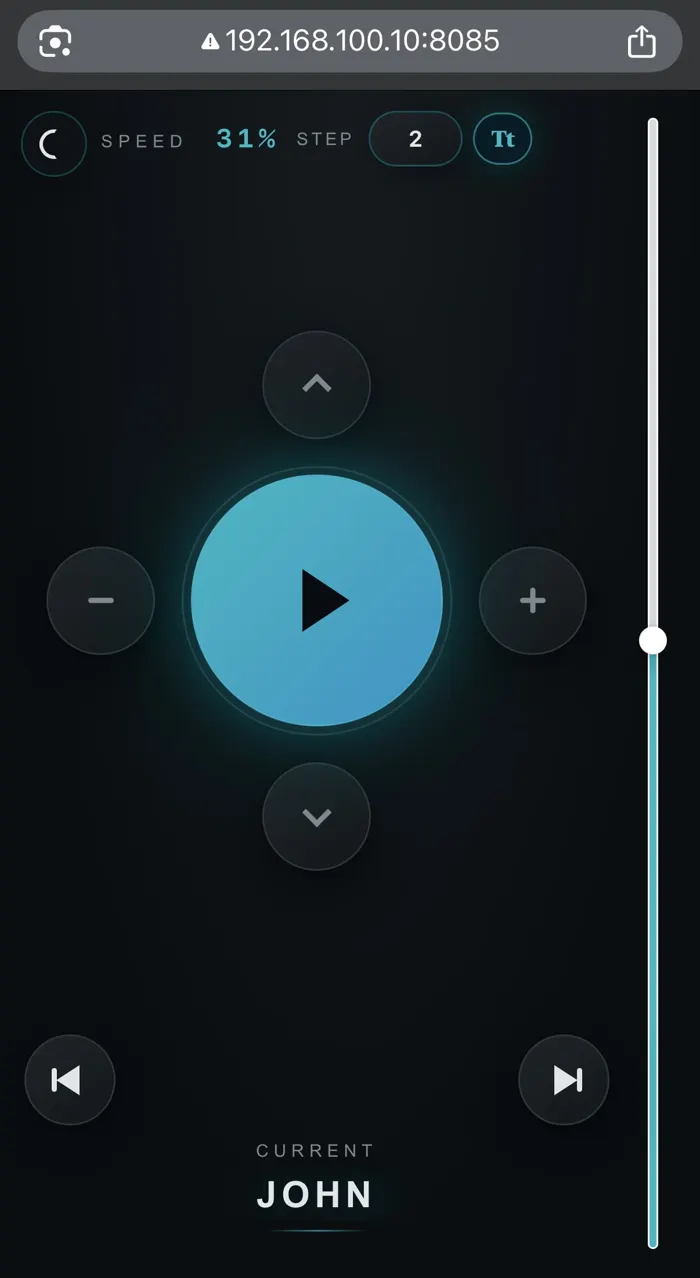
A separate browser page turns a phone, tablet or second computer into a control surface. Useful when the operator stands beside the presenter rather than behind a desk, or when a producer needs to hold the script for a moment.
- Play, pause and adjust speed, with a selectable step for finer or larger changes
- Jump to any position, nudge the script by hand or step between stories
- Adjust text size and switch the displayed text between its original case and uppercase
13 · Shortcuts
Keyboard and jog control
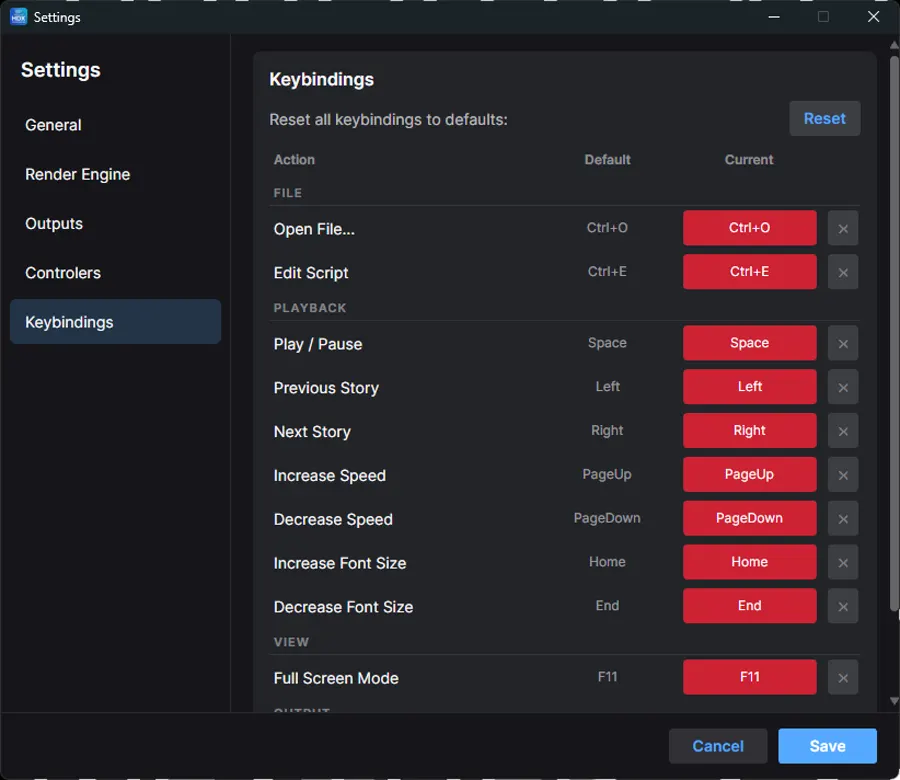
Keyboard shortcuts are built in and fully editable, so the operator can keep their eyes on the room instead of hunting for a control. For a tactile workflow, a Contour ShuttleXpress adds a shuttle ring for speed and a jog dial for fine movement.
- Set your own keys for play, speed, story navigation, type size and fullscreen
- Conflicts are flagged, and any shortcut can be reset on its own
- ShuttleXpress adds a shuttle ring, a jog dial and five mapped buttons
Contour ShuttleXpress is a third-party controller and is sold separately.
Ready to try it?
Setup details, story markers and network notes are in support.